


Playlist Transfer for My Music
4.4543.00 Reviews
App Specs
- Version
- 2.4.4
- Updated On
- License
- Free
- Downloads
- 100,000+
- Developer
- Virals Dijital Hizmetler A.S.
- Categories
- Music & Audio
- Platform
- Android
Screenshots
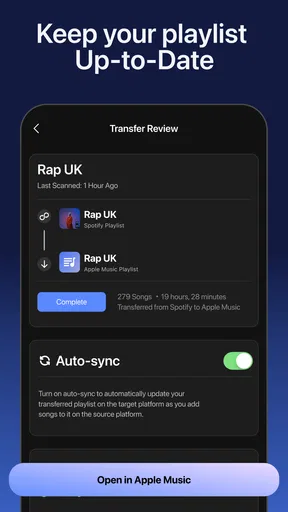
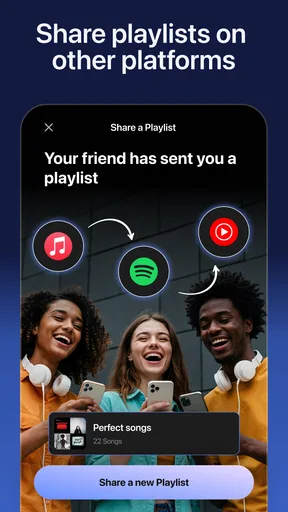
 Analysis by AppCompare
So, you know that moment when you're switching music streaming services and your entire playlist collection feels like it's about to disappear into the void? Yeah, I've been there too, and let me tell you, it’s not a fun place to be. Enter Playlist Transfer for My Music, a nifty app that promises to make your transition smooth and seamless, without losing a single beat. Its central appeal is practical rather than flashy: moving playlists between music services without rebuilding them track by track. I’d consider it when a change of service is already on the horizon, not as something every listener needs to keep open every day.
The problem a transfer tool can actually solve
Playlists often hold more than a queue of songs. I use them to mark a particular mood, a long commute, or a stretch of time when I kept returning to the same albums. Starting over on a new streaming service can mean trying to remember dozens of choices, and even a playlist that looks simple may have taken years to shape. A transfer app addresses that specific hassle: it helps carry the structure of a collection across services, so I can spend less time recreating it and more time listening.
That distinction matters. A playlist transfer is not the same thing as moving music files or guaranteeing that every recording exists in the destination catalog. The useful goal is to find corresponding tracks and rebuild the playlist where possible. When a song has a different edition, title, or availability, a match can be imperfect or missing. I would treat a transfer as a strong first pass, followed by a quick review of the results, rather than assume every item will land exactly as I intended.
Getting Started with Playlist Transfer
Jumping into Playlist Transfer for My Music is like stepping into a well-organized music library. The first thing you'll notice is the clean and intuitive interface, which is a breath of fresh air. I mean, who wants to deal with clunky menus when you're just trying to move your playlists around, right? The app is in the Music & Audio category, and its developer is Virals Dijital Hizmetler A.S. It is free to download, with optional in-app purchases, so I’d check the purchase details in the app before starting if I expect to transfer a large collection or use it repeatedly.
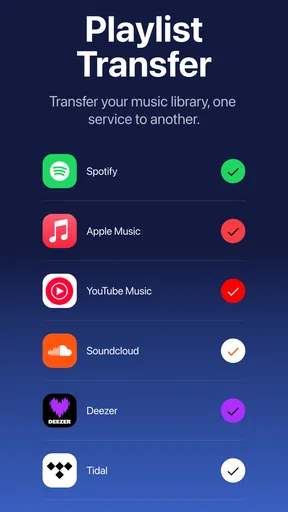
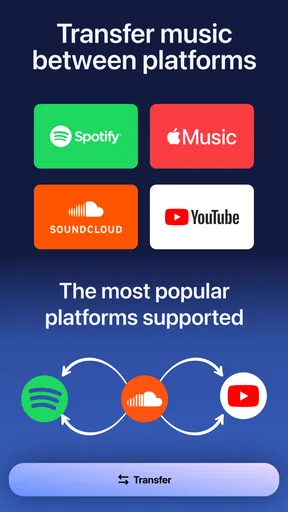
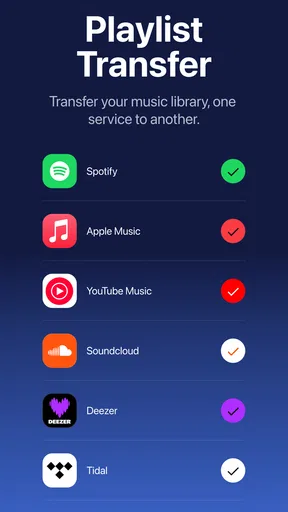
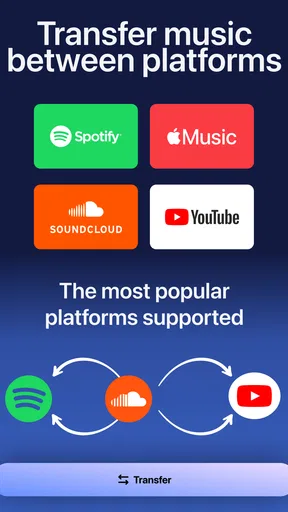
Once you've downloaded the app, setting it up is as easy as pie. You just need to log into your current and target music streaming services. It supports all the big players like Spotify, Apple Music, Amazon Music, and more. Trust me, if your music service is out there, this app probably has it covered.
Before you start moving playlists
For a smoother first attempt, I’d begin with one playlist I know well rather than selecting a whole library immediately. Pick one with a mix of familiar artists, older tracks, and any songs that have alternate versions. That gives you a useful sample of how the destination service handles your listening habits before you commit to a bigger batch. If the result looks right, proceed with the rest; if it needs attention, you have a manageable example to inspect first.
It also helps to make a short note of playlists that matter most. A “daily commute” mix and a carefully curated party list may deserve priority over an old collection you rarely open. That is not a technical requirement; it is a practical way to avoid spending time checking every playlist with equal care. Keep the original service available until you have checked the destination, especially if you are planning to cancel or stop using the old account soon.
Worth Reading Before You Choose

Baby Panda World Brings Quick Play to Modern Phones, but Its Game Library Feels Busy

ESPN’s Live Game View Makes Following Close Games Easier

QuizzLand Review: A Good Fit for Short Trivia Breaks, Not Every Player

Basketball Stars: Multiplayer Is Fast, but Can It Recover When Matches Go Wrong?

WEBTOON Turns Phone Updates Into a Better Reading Routine

Link to Windows Runs on Shared Habits, Not Social Feeds
How Does It Work?
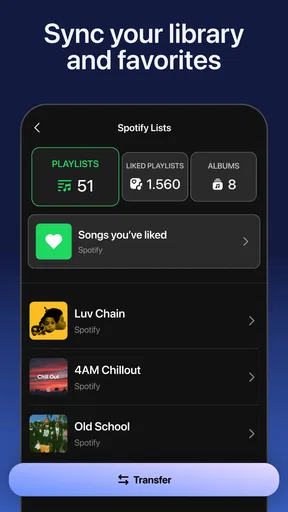
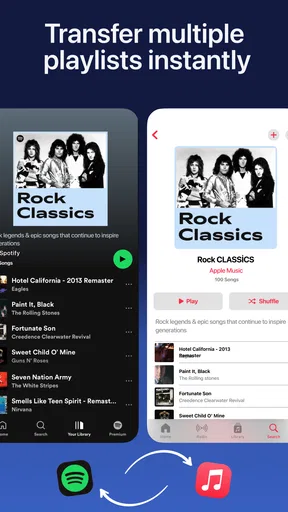
Okay, here’s the magic part. Once you’ve logged in, you select the playlists you want to transfer. You can choose specific ones or hit up the entire collection—whatever floats your boat. The app then works its magic, matching songs from one service to another. And yes, it’s as cool as it sounds.
The app uses smart algorithms to find matches for each song, even if the titles aren’t identical. It’s like having a personal DJ who knows exactly what you want to hear, no matter where you are.
What matching means for your listening
Matching is where convenience and caution meet. A title may exist in several versions: a studio recording, a live performance, a remaster, or a track attached to a different release. A service may also list a featured artist or punctuation differently. The matching process can save a lot of manual searching, but I would still scan the tracks that are especially important to me. For a workout playlist where order and exact versions matter, a few minutes of checking can prevent an annoying surprise later.
One useful habit is to look closely at the unmatched-track summary instead of treating it as a failure report. It tells you where a quick manual search may be worthwhile. If only a few songs are missing, it can be faster to add those directly in the destination service than to troubleshoot the entire transfer. For a collection built around obscure recordings, regional releases, or niche live cuts, expect more hands-on cleanup than you would with a playlist of widely available hits.
Performance and Features
Now, I know what you’re thinking: "Does it actually work?" The short answer is a resounding "yes!" The transfers are quick, and I’ve yet to encounter any significant hiccups. The app also provides a summary of any tracks it couldn’t match, which I found super helpful. It’s like having a little checklist to ensure nothing slips through the cracks.
Another feature I really dig is the ability to back up your playlists. You know, just in case you’re feeling nostalgic and want to revisit those summer hits from 2010. It’s a nice touch that shows the app developers really thought about user needs.
A realistic day-to-day use
Imagine deciding on a Sunday evening that you want to try a different streaming service before the workweek begins. You could start with the playlists you rely on for the Monday commute, move those first, and check the destination versions while you still have time to fix a missing song or two. Later, you can handle older mixes that are less urgent. That staged approach is more reassuring than launching every playlist at once and discovering a problem only when you are already in the car and ready to listen.
The same idea works if you are not changing services permanently. You might want to test another service’s catalog or interface while keeping your main listening setup intact. In that case, transferring a small selection gives you a practical way to compare how your own playlists feel in the new environment. I would avoid assuming that a copied playlist automatically stays synchronized with its source; after a transfer, treat the destination as a separate collection unless you have confirmed otherwise in your own workflow.
Usability and Design
Design-wise, the app is a pleasure to navigate. The developers have clearly put a lot of thought into making it user-friendly. I love how everything is laid out logically, without any unnecessary clutter. It’s like they took the best bits of every music service and smooshed them together into one.
One thing that stands out is the app’s responsiveness. Whether you’re on iOS or Android, Playlist Transfer for My Music runs smoothly. No lagging, no freezing—just straightforward functionality. And let’s be honest, in our fast-paced world, who has time for anything less?
How it compares with doing it yourself
The usual alternative is to rebuild playlists manually inside the destination service. That can be perfectly sensible if you only have a handful of songs or want to revise the list as you go. Manual recreation gives you control over every version and lets you rethink what still belongs, but it becomes tedious when the collection is large. A transfer tool is most valuable in that middle ground: enough playlists to make manual work a chore, but not so many unusual tracks that reviewing the results becomes a project of its own.
Compared with leaving everything in the original service, transferring is useful when you want your listening to follow you rather than remain tied to an account you may stop using. Compared with starting from scratch, it preserves a familiar foundation. Neither option is automatically best. If your playlists are short and due for a refresh, rebuilding may be more satisfying. If your collection is extensive and mostly mainstream, automation is likely to save effort. If exact editions are essential, plan for a careful comparison whichever route you choose.
Limits worth planning around
The main trade-off is that an automated match cannot understand why you chose a particular recording. It can identify a likely equivalent, but you may care about the specific album version, an explicit or clean edit, or a live take that looks similar by title. That is why I would not use the transfer as a reason to delete the source playlists straight away. Check key lists in the destination, then decide when you are comfortable relying on them.
There is also a cost consideration. The app is free, but in-app purchases range from $7.99 to $39.99 per item. I would look at the options that appear in the app and decide whether they suit the amount of transferring I actually plan to do, rather than paying before I know how many playlists need attention. It is rated for Everyone, has an average rating of 4.4 from around 12,000 ratings, and has passed 100,000 installs. Those figures suggest it has found an audience, but they do not remove the need to check whether its service support and purchase options fit your particular switch.
Who will get the most out of it?
I’d recommend this kind of tool to someone with a meaningful Spotify collection who is moving to Apple Music, YouTube, or another supported destination and does not want to rebuild everything by hand. It is also a good fit for listeners who keep separate playlists for work, exercise, family trips, and downtime; the more organization you have already put into those lists, the more useful it can be to carry that organization across.
It is less compelling if you rarely make playlists, only have a few tracks to move, or are happy to discover new music from scratch. I would also be cautious if your listening depends heavily on rare versions and precise track selection. In that situation, transfer the most important lists first and check them carefully, or recreate those particular playlists manually. The app can reduce repetitive work, but it cannot replace your judgment about which version belongs.
The app was released on October 14, 2024, and its current version is 2.4.1. It requires Android 10 or later. Those details are worth checking against your device before you install, particularly if you use an older Android phone. For iPhone users, the key decision is less about that Android requirement and more about whether the service accounts and playlists they want to use are supported in their setup.
Final Thoughts
In a nutshell, Playlist Transfer for My Music is a lifesaver for music lovers like us. It takes the hassle out of switching services and lets you focus on what really matters—enjoying your tunes. Whether you’re a casual listener or a playlist perfectionist, this app has got you covered.
So, if you’re planning a switch or just want to keep your playlists safe and sound, give this app a whirl. It’s like having a little music assistant in your pocket, always ready to keep your groove going.
Ready to try it out? Hit up the download links and let your musical journey continue unabated. Happy listening!
Pros
- Easy-to-use interface for all users.
- Supports multiple music streaming services.
- Fast transfer speeds for playlists.
- No need for additional software installation.
- Secure data handling during transfers.
Cons
- Limited free transfers per month.
- May not support all niche music apps.
- Requires a stable internet connection.
- Occasional sync issues reported.
- Subscription needed for premium features.
FAQs for Playlist Transfer for My Music
What is Playlist Transfer for My Music?
Playlist Transfer for My Music is an app designed to help users seamlessly transfer their music playlists between different streaming services. Whether you are switching platforms or just want your playlists available across multiple services, this app simplifies the process, ensuring that your music is always where you need it.
Is Playlist Transfer for My Music compatible with all streaming services?
The app supports a wide range of popular music streaming services, including Spotify, Apple Music, and YouTube Music. However, compatibility can vary, so it is recommended to check the app's current list of supported services to ensure it meets your specific needs before downloading.
How secure is the data transfer with Playlist Transfer for My Music?
Security is a top priority for Playlist Transfer for My Music. The app uses encrypted connections to protect your data during transfers. It does not store your music files or personal information, ensuring that your data remains private and secure throughout the process.
Are there any limitations on the number of playlists I can transfer?
While the app allows for transferring multiple playlists, there may be limitations based on the version you are using. The free version may have restrictions on the number of transfers, while the premium version typically offers unlimited transfers, providing greater flexibility for avid music enthusiasts.
Does Playlist Transfer for My Music support offline transfers?
Playlist Transfer for My Music primarily relies on an internet connection to access and transfer playlists across streaming services. Therefore, an active internet connection is required for the app to function properly. Offline transfers are not supported at this time.


